Set up Paytrail in your Shopify store to start accepting online payments. During setup, you’ll add Paytrail as a payment method, enter your Merchant ID and Merchant Secret, and activate Paytrail in Shopify.
If needed, see instructions on bypassing the payment page in Shopify.
Before you begin
You will need your Paytrail Merchant ID and Merchant Secret. You can find them in the Merchant account section of the Merchant panel. See instructions for finding your Merchant ID and Merchant Secret.
Step-by-step: Set up Paytrail in Shopify
- Sign in to your Shopify admin. Setup requires Owner-level permissions.
-
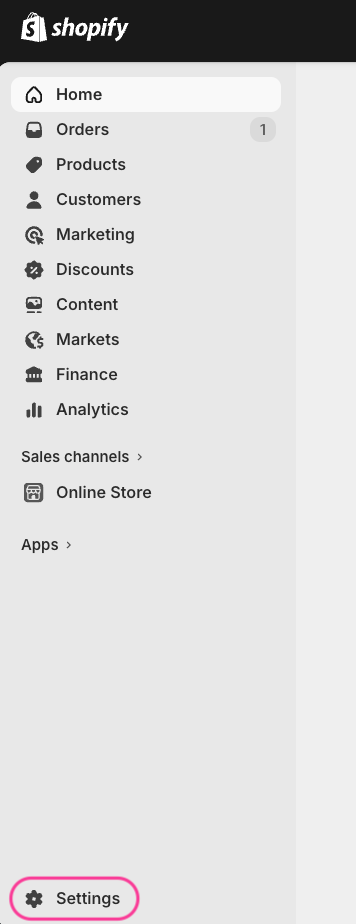
From the menu in the lower-left corner, select Settings.
-
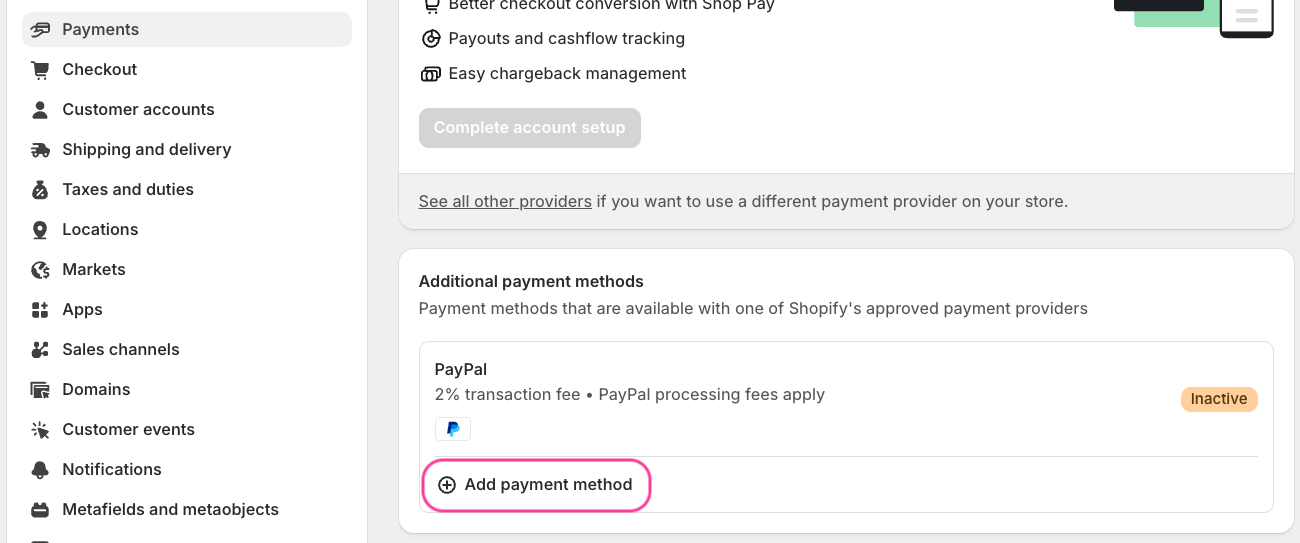
Select Payments, go to the Additional payment methods section, and select Add payment method.
-
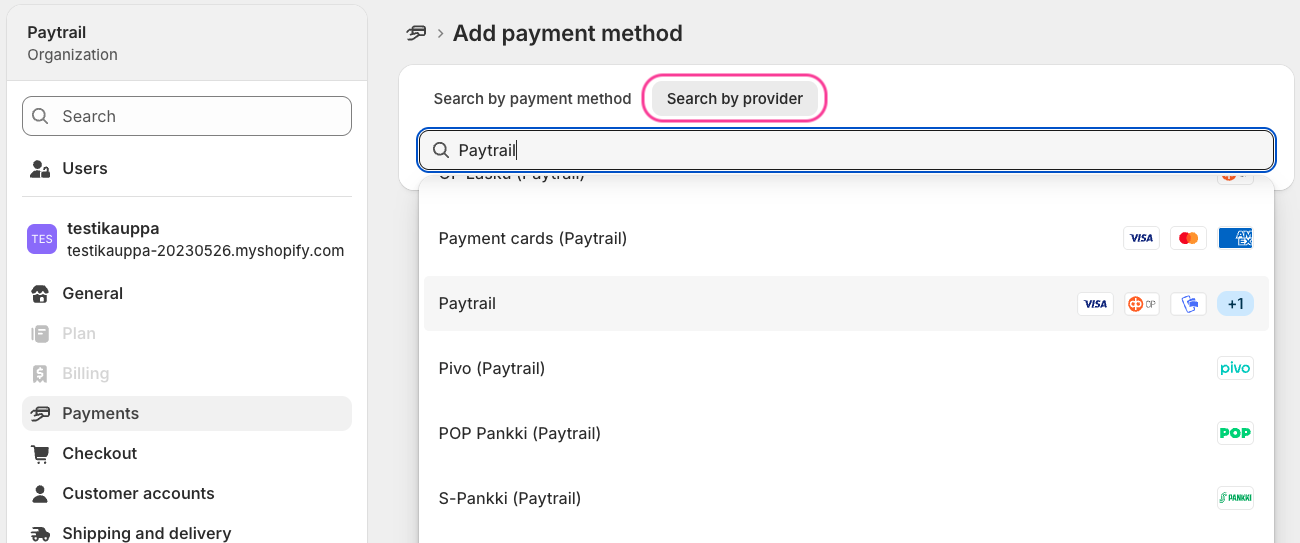
Select Search by provider, enter Paytrail in the search field, and select Paytrail from the list.
-
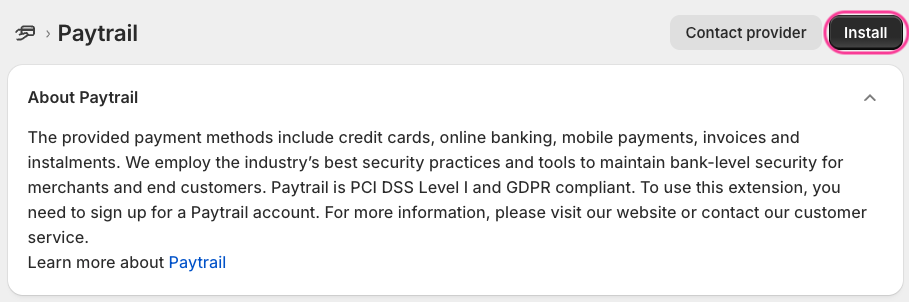
On the Paytrail page, select Install in the upper-right corner.
-
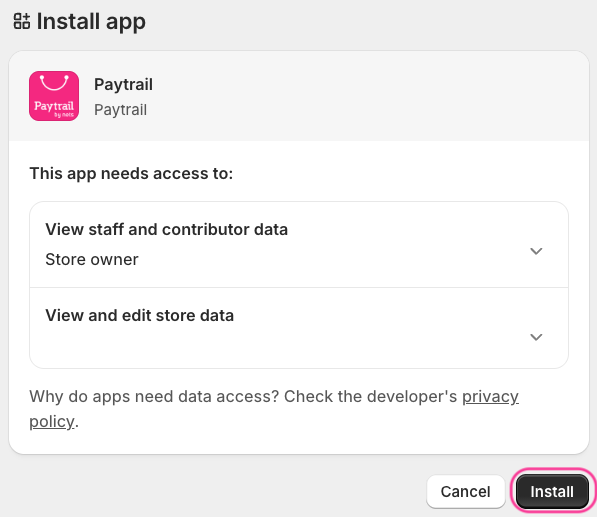
Confirm the installation by selecting Install in the pop-up window.
-
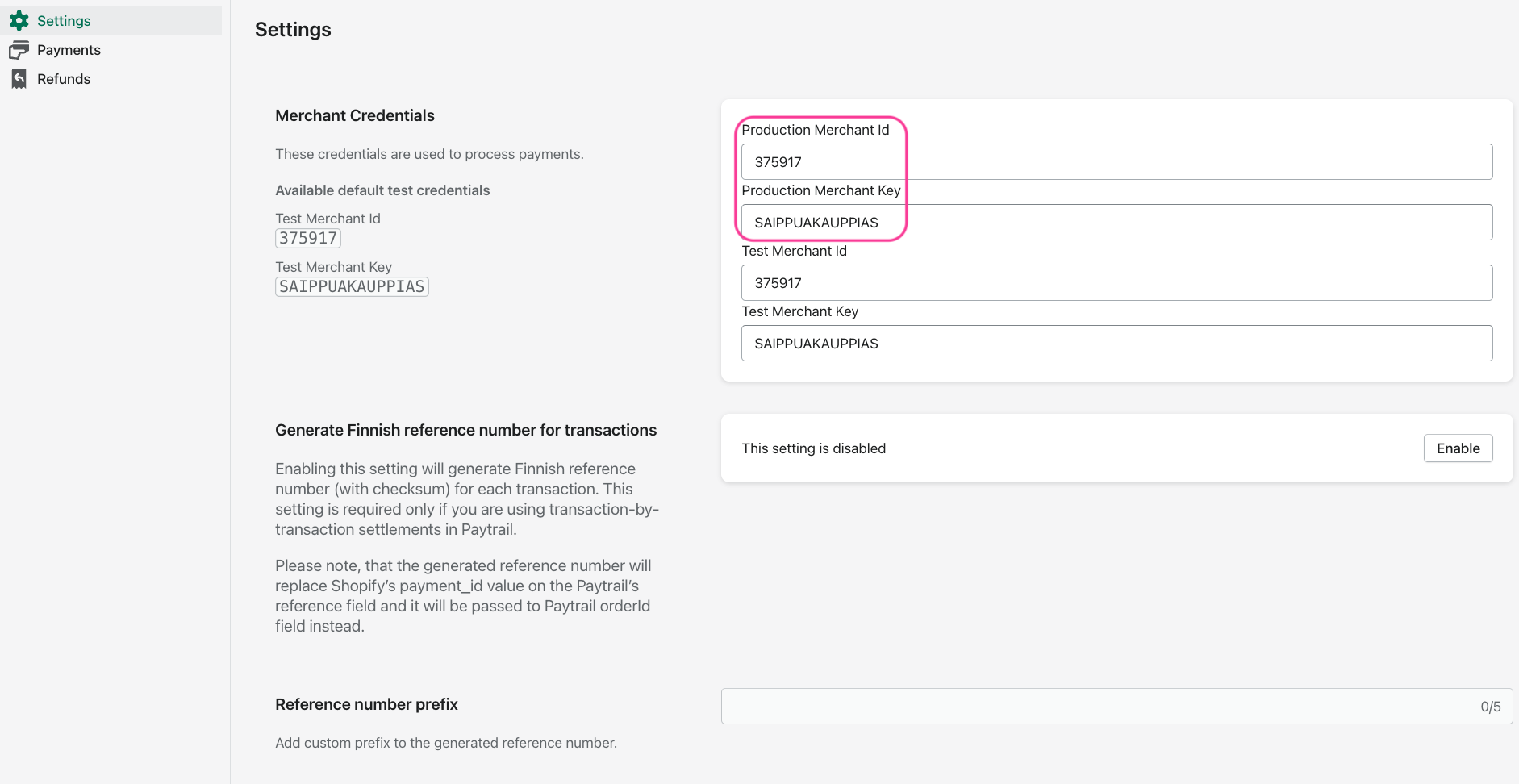
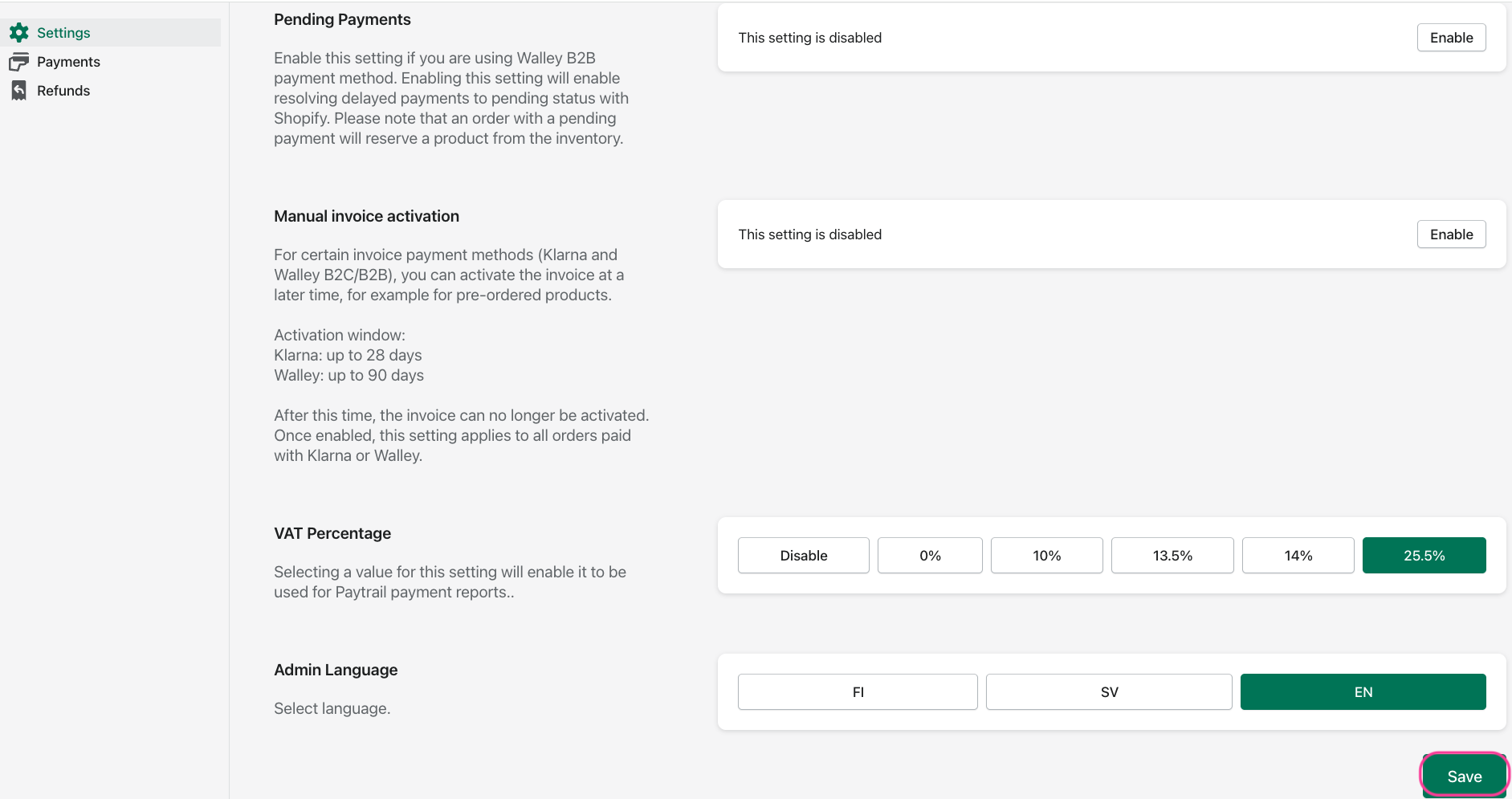
Enter your Paytrail credentials in the Merchant ID and Merchant Secret fields and select Save.
In this view, you can also:
- edit reference number settings
- select the VAT rate used for settlement reports (only one VAT rate can be selected)
- enable manual invoice approval
- At the Credentials Saved Successfully, click Confirm to proceed to activate Paytrail.
-
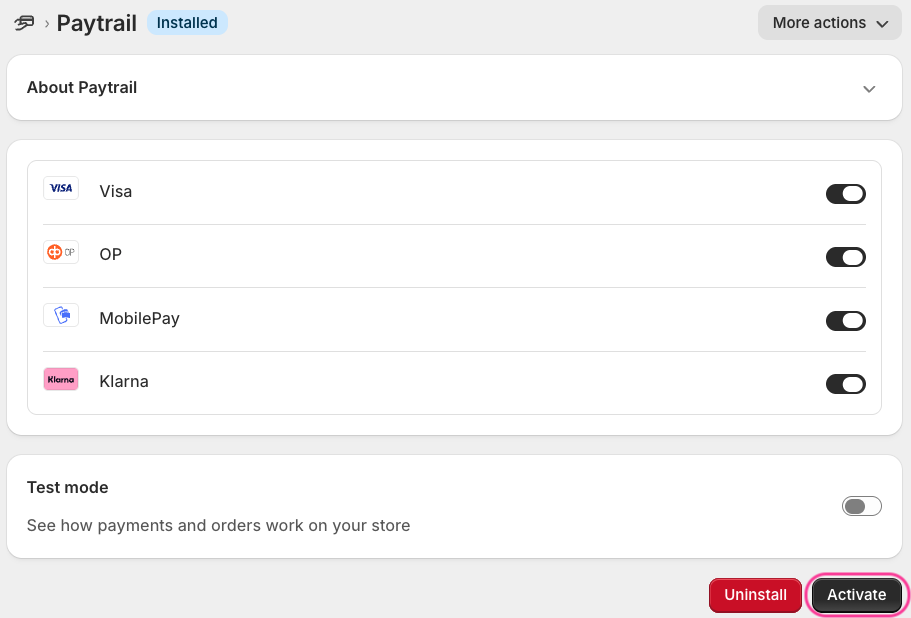
Select Activate to activate Paytrail.
-
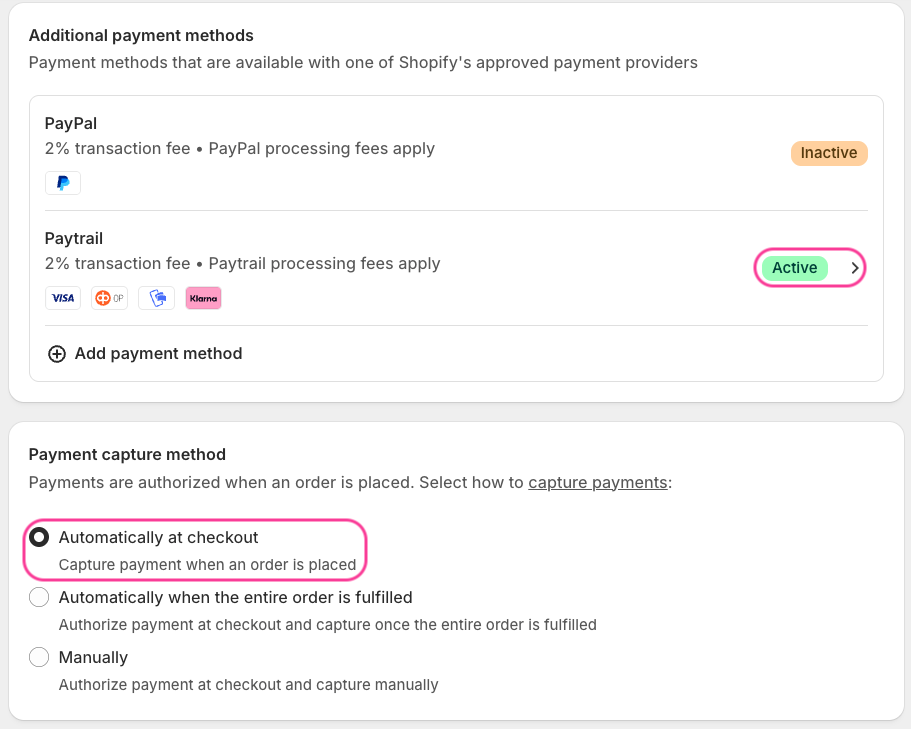
Make sure the Paytrail status is Active and that Payment capture method is set to Automatically at checkout.