Onboarding a new Shop-in-Shop business begins by creating a sub-merchant in the Partner Portal. Activating the payment service requires the sub-merchant to sign in to the Merchant panel, complete their company details, and electronically sign the payment service agreement.
Paytrail does not support foreign sole traders or proprietorships.
Create a sub-merchant in the Partner Portal
- Sign in to the Partner Portal.
- From the left-hand menu, select Add new merchant.
- Enter the requested information for the sub-merchant:
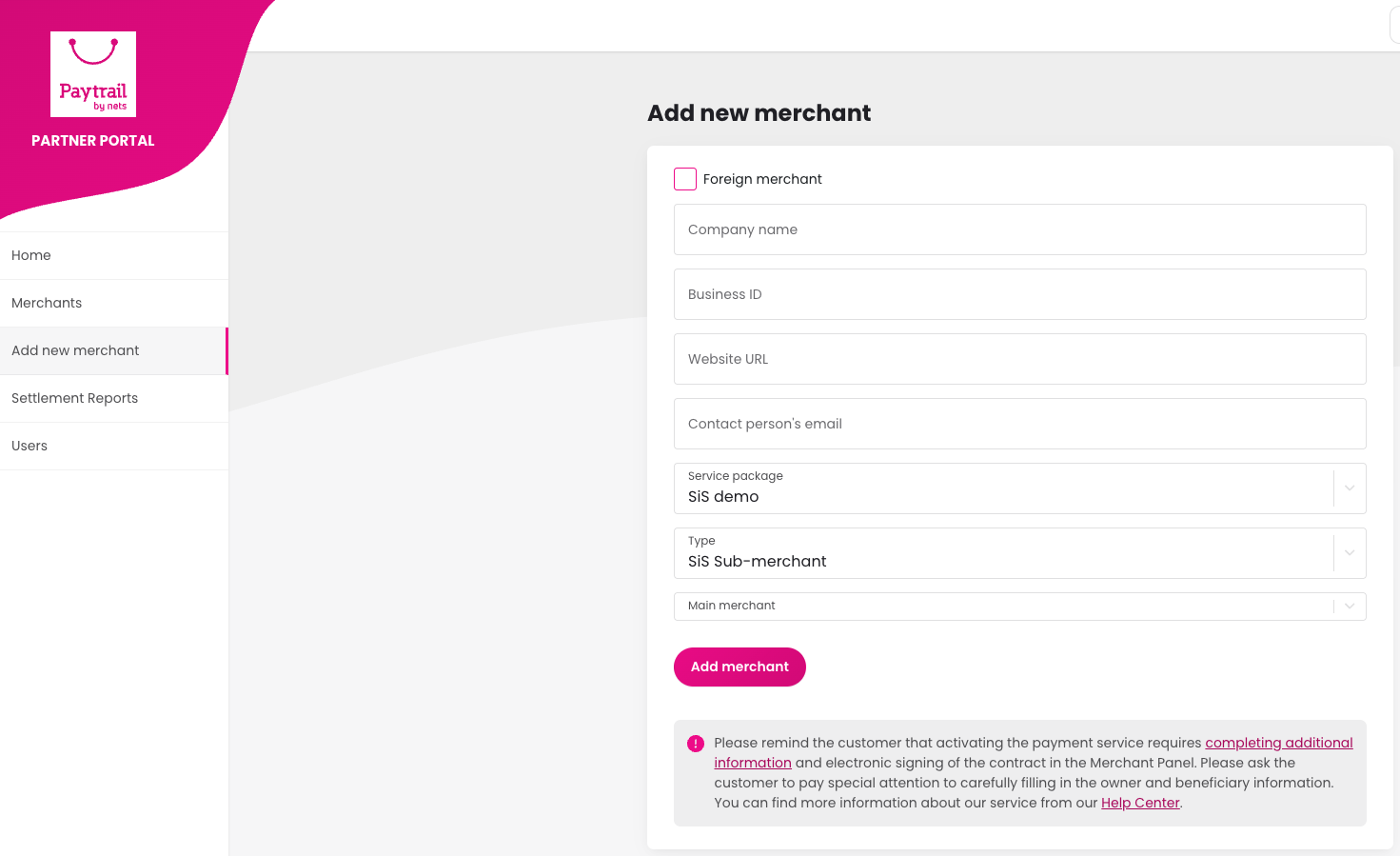
- If the sub-merchant is registered outside Finland, select Foreign merchant.
- Company name: The legal name of the sub-merchant’s business.
- Business ID: The sub-merchant’s Business ID.
- Website URL: The platform website address. If the platform is an app, you can use the Admin’s or the sub-merchant’s website address.
- Contact person's email: The sub-merchant receives an email at this address after the sub-merchant ID is created.
- Select Add merchant. The sub-merchant automatically receives an email request to complete their payment service sign up.
-
After creating the sub-merchant, remind them that activating the payment service requires signing in to the Merchant panel to complete their company details and electronically sign the agreement.
If the sub-merchant is a foreign company, also notify our onboarding team: support@paytrail.com
Create a sub-merchant via API
Creating sub-merchants via API requires activation from Paytrail and an API key. The API key is sent to your email after activation.
See the technical documentation for API instructions: Technical documentation for creating a sub-merchant via API.