All Merchant Panel passwords were reset on 26.07.2024, as a precaution after detecting advanced phishing attempts targeting merchant accounts. The reset ensures that all users create stronger, more secure passwords. When you next log in, you’ll be prompted to set a new password and activate two-factor authentication (2FA) to protect your account access.
Step by step: Reset your Merchant Panel password
- Go to the Merchant Panel login page and enter your username and password.
- Follow the on-screen view shown below.
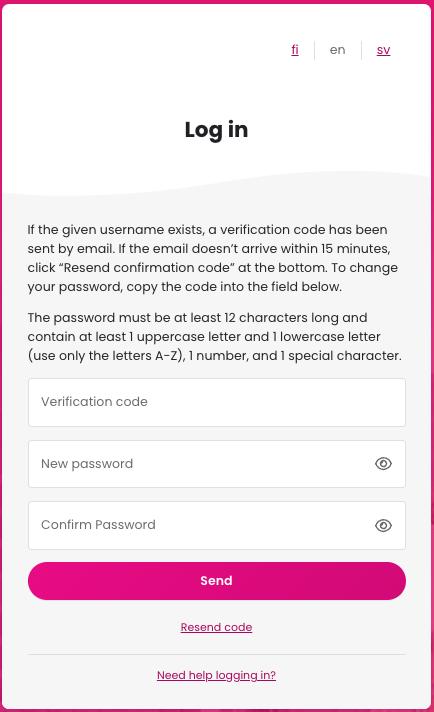
- Enter the verification code from the email titled Vahvistuskoodi Paytrail-palveluun (available in Finnish, Swedish, and English).
- If the verification code has expired, click Resend Code.
- Create a new password.
- The password must be at least 12 characters long and include one uppercase letter, one lowercase letter, one number, and one special character. When finished, click Send.
- Log in again with your email address and new password.
When resetting your password, you must also enable two-factor authentication (2FA). Read the two-factor authentication (2FA) setup instructions for the Merchant Panel.
If you run into issues while resetting your password or enabling two-factor authentication (2FA), read the FAQ: Password reset and two-factor authentication (2FA) for the Merchant Panel.