Learn how to set up two-factor authentication (2FA) on your Windows computer when using a mobile device is not possible. We recommend enabling 2FA with a mobile device whenever you can, but it can also be activated directly on your computer. If you prefer mobile setup, read the two-factor authentication (2FA) instructions for mobile devices.
Step 1: Choose an authenticator app
You can install an authenticator app directly from the Microsoft Store or through a browser. Both options allow you to add secure two-factor authentication (2FA) on your Windows computer.
- Open the Start menu and search for Microsoft Store.
- Select Microsoft Store from the results.
- Browse available apps and search for authenticator.
- Review your options and select an app you prefer. For example, FirstOrder Authenticator is a free and easy-to-use option.
- Click Get to download and install the app. Follow the on-screen instructions to complete setup.
- Open your preferred browser (for example, Google Chrome or Microsoft Edge).
- Go to https://apps.microsoft.com/.
- Search for an authenticator app such as FirstOrder Authenticator.
- Click Get to download and install the app.
These instructions are specifically for the FirstOrder Authenticator app but can be adapted for any authentication app. They apply whether you installed the app directly from Microsoft Store or via browser.
Step 2: Set up authenticator app by FirstOrder
- Open the FirstOrder Authenticator app and click Get Started.
- Press Next to skip optional setup screens.
- If prompted to log in with a Google account, click outside the login window to skip this step.
Step 3: Enable 2FA in the Merchant Panel
- Sign in to the Merchant Panel login page with your email and password.
-
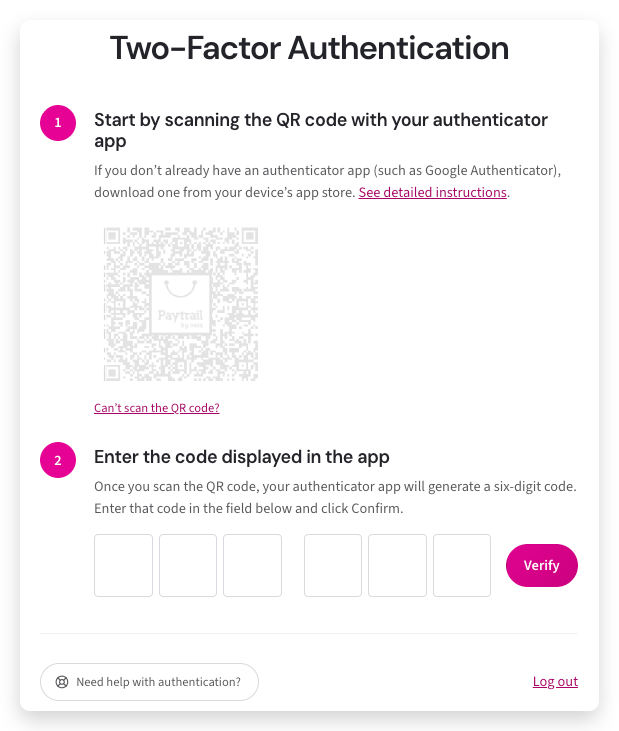
The two-factor authentication setup window has two steps. In Step 1, you’ll see the QR code for connecting your authenticator app.
-
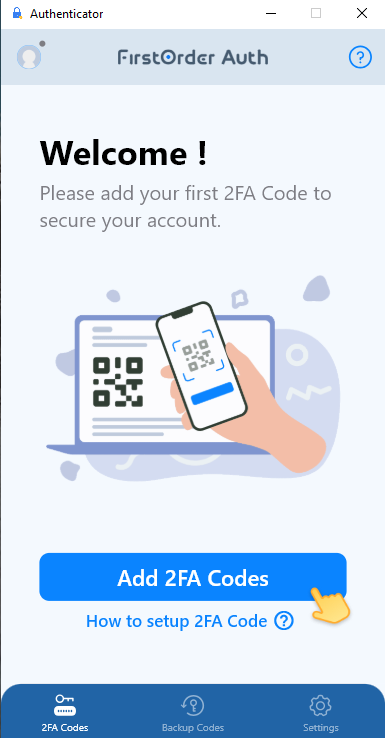
Open the FirstOrder Authenticator app and click Add 2FA codes.
-
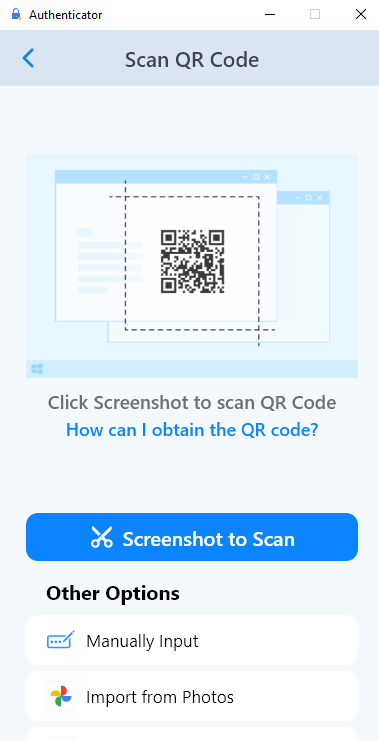
Select Screenshot to Scan and take a screenshot of the QR code displayed on the Merchant Panel page.
-
Return to the Merchant Panel. Enter the six-digit code from your authenticator app in Step 2, then click Verify.
Two-factor authentication is now active. The Merchant Panel will require a code from your authenticator app each time you log in.