Learn how to set up two-factor authentication (2FA) on your Mac if using a mobile device is not possible. We recommend enabling 2FA with a mobile device whenever you can, but it is also possible to activate it directly on your computer. If you prefer mobile setup, read the two-factor authentication (2FA) instructions for mobile devices.
Step 1: Choose an authenticator app
- Open the App Store on your Mac.
- Search for authentication. When the results appear, open the Mac apps tab and use filters such as Price, Category, or Sort to choose an authenticator app.
-
Select an app you prefer. Free options include 2stable Authenticator and FirstOrder Authenticator.
2stable Authenticator:
FirstOrder Authenticator: - Click Get to download and install the app. Follow the on-screen instructions to finish setup.
The next steps describe setup for Authenticator App by 2stable, but you can use any authenticator app.
Step 2: Set up authenticator app by 2stable
- Open the app and click Get Started.
- Click Skip to move past the next steps and continue setup.
- On the Choose package screen, scroll down and select Skip for now to proceed without choosing a plan.
- On the Create screen, enter your password twice. When the Important pop-up appears, click Confirm to save it.
- On the Fast Access screen, choose whether to enable Unlock with Touch ID, then click Complete Setup to finish.
Step 3: Enable 2FA in the Merchant Panel
- Sign in to the Merchant Panel login page with your email and password.
-
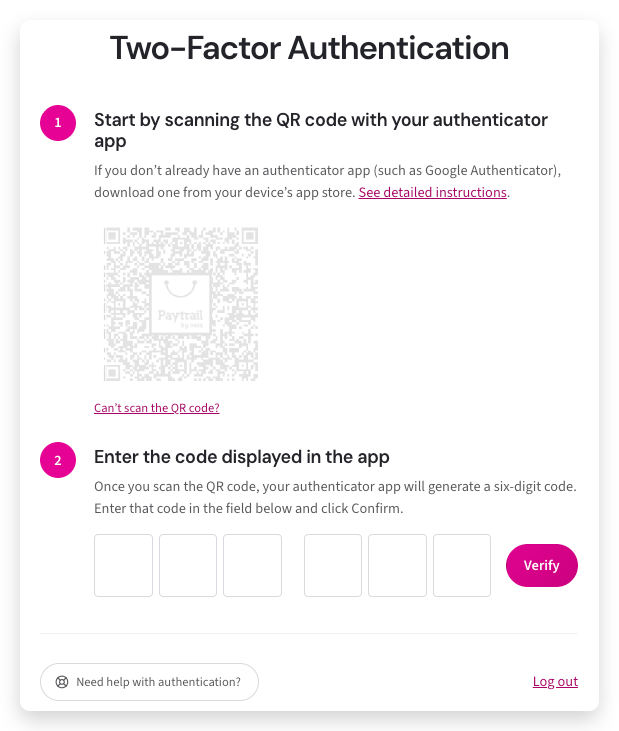
The two-factor authentication setup window has two steps. In Step 1, you’ll see the QR code for connecting your authenticator app.
- Open the Authenticator App by 2stable and click the blue plus (+) icon in the bottom-right corner.
- On the Scan QR Code screen, hold your authenticator app over the QR code shown in the Merchant Panel.
- On the Account screen, click Save to create a Merchant Panel account in your authenticator app.
- After you scan the QR code, the authenticator app will generate a six-digit verification code.
-
Return to the Merchant Panel. Enter the six-digit code from your authenticator app in Step 2, then click Verify.
Two-factor authentication is now active. The Merchant Panel will require you to enter a verification code from the app each time you log in.