Learn how to log in to the Merchant Panel using two-factor authentication (2FA) with an authenticator app. Two-factor authentication adds an extra layer of security to your account and requires entering a code from an authenticator app. At the bottom of this page, you can also find illustrated step-by-step guides for Microsoft Authenticator and Google Authenticator.
How to use an authenticator app
Below you’ll find step-by-step instructions on how to use an authenticator app for two-factor authentication (2FA) when logging in to the Merchant Panel.
Step 1: Download an authenticator app to your device
Several free authenticator apps are available. We recommend Microsoft Authenticator and Google Authenticator, recognizable by the logos below. You can download your preferred app from your device’s app store.
Step 2: Sign in to the Merchant Panel using an authenticator app
- Sign in to the Merchant Panel. A QR code will be displayed.
- With your authenticator app, scan the QR code shown on the Merchant Panel login page.
-
The app generates a six-digit verification code. Enter this code into the Code from authenticator app field on the Merchant Panel login page and click Confirm to complete the log in.
Tip: Always use the active code shown in the app. It refreshes about every 30 seconds, and once it changes the previous code is no longer valid.
Microsoft Authenticator and Google Authenticator instructions
Choose the app you use and follow the illustrated instructions.
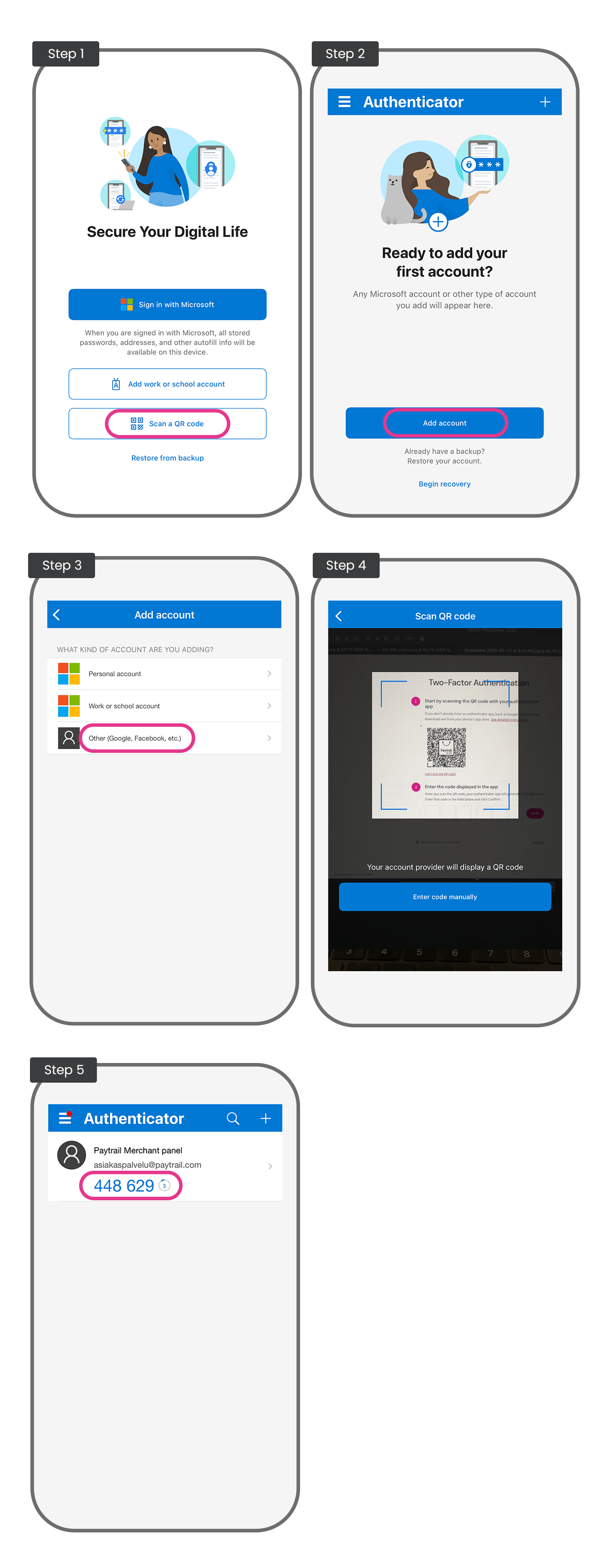
- Open Microsoft Authenticator. If you want to use the app without signing in, click Scan QR code.
- Select Add account.
- Choose Other (Google, Facebook, etc.).
- With your authenticator app, scan the QR code shown on the Merchant Panel login page.
-
The app generates a six-digit verification code. Enter this code into the Code field on the Merchant Panel login page and click Confirm to complete the log in.
Tip: Always use the active code shown in the app. It refreshes about every 30 seconds, and once it changes the previous code is no longer valid.
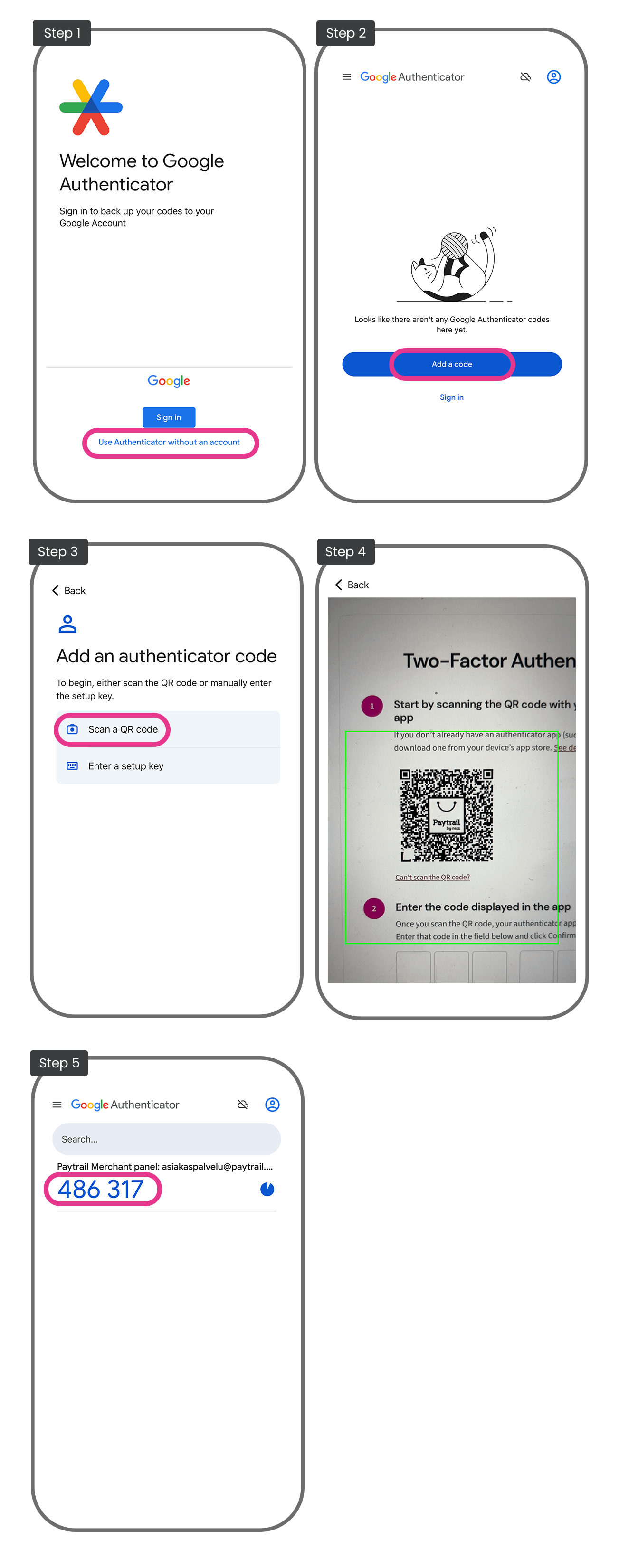
- Open Google Authenticator. If you want to use the app without signing in to your Google account, click Use Authenticator without an account.
- Select Add code.
- Select Scan QR code.
- With your authenticator app, scan the QR code shown on the Merchant Panel login page.
- The app generates a six-digit verification code. Enter this code into the Code field on the Merchant Panel login page and click Confirm to complete the log in.
Always use the active code shown in the app. It refreshes about every 30 seconds, and once it changes the previous code is no longer valid.