Email refunds follow the same steps as normal refunds in the Merchant Panel, but with one key difference: the customer provides their account number. This option appears when a payment cannot be refunded automatically, for example with certain banks or older payments. Using the secure link, customers safely enter their account details, ensuring refunds remain reliable and safe.
Step by step: Create an email refund
- Sign in to the Merchant Panel.
- From the left-hand menu, select Payments.
- Use the search options to locate the payment you want to refund. See payments search for details on the search options.
- From the Latest payments list, click the payment to open its details.
- Scroll to the Order content and refunds section and enter the refund amount.
- You can issue a full or partial refund by entering the amount.
-
The comment field is for your own notes and is not shown to the customer.
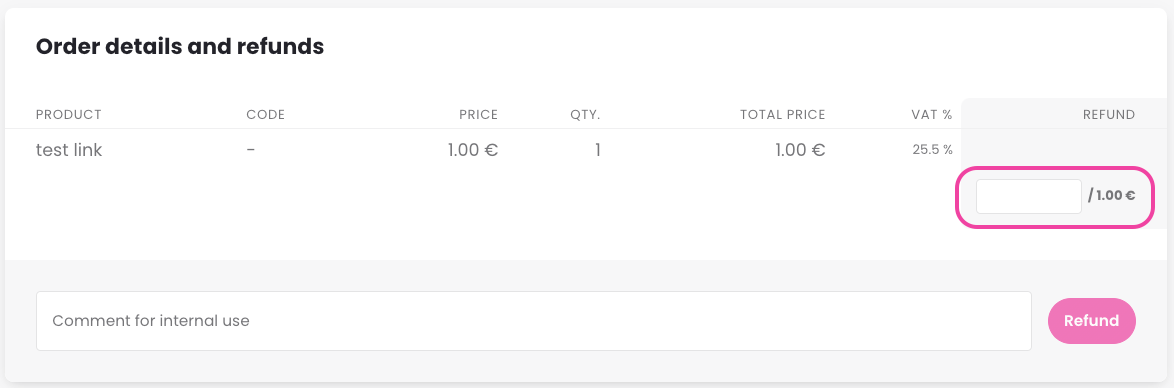
- Click Refund and then enter your customer’s email address. The customer will receive an email with a link to provide their account number. When entering their account number, the customer's identity is verified.
How to cancel an email refund
You can cancel an email refund if its status is still New.
- Sign in to the Merchant Panel.
- From the left-hand menu, select Payments.
- Click Show more to search for email refunds.
- In the Event type field, select Email refunds.
- In the Status field, select New.
- From the Latest payments list, click the payment to open its details.
- Click Cancel refund. The refund link will be canceled and no money will be deducted.