Two-factor authentication (2FA) adds essential protection when you access the Merchant Panel by requiring both your password and a verification code from your authenticator app. When you log in for the first time, you complete a quick setup that links the app to your Merchant account. This ensures secure access from the start and keeps your account protected against unauthorized use.
Why is two-factor authentication used?
Logging in to the Merchant Panel requires two-factor authentication (2FA), which significantly improves account security. 2FA helps prevent misuse if a username and password are compromised.
To log in, you need an authenticator app. We recommend Microsoft Authenticator and Google Authenticator, as they are widely used by our customers.
Only authenticator apps are supported for Merchant Panel 2FA. Bank credentials or SMS verification cannot be used.
Step 1: Download and prepare an authenticator app
- Download an authenticator app from your device’s app store. Free options include Microsoft Authenticator and Google Authenticator.
-
Expand the instructions below based on which authenticator app you have downloaded.
Microsoft Authenticator- Open the app. To use it without logging in, select Scan a QR Code.
- Select Add account.
- Choose Other (Google, Facebook, etc.). Next, continue with Step 2 in the Merchant Panel.
Google Authenticator- Open the app. To use it without logging in to your Google account, select Use Authenticator without an account.
- Select Add a code.
- Select Scan a QR code. Next, continue with Step 2 in the Merchant Panel.
Step 2: Enable two-factor authentication in the Merchant Panel
-
Sign in to the Merchant Panel. A QR code will be displayed.
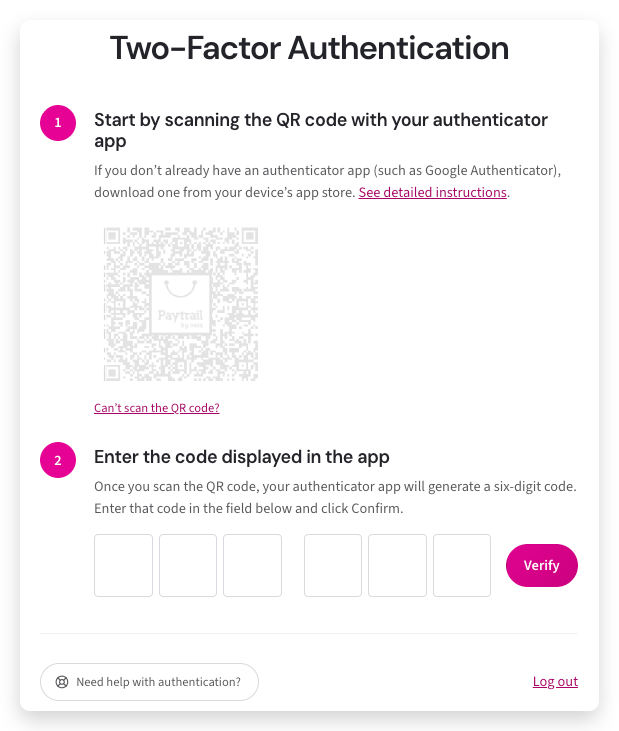
- With your authenticator app, scan the QR code shown on the Merchant Panel login page.
- The app generates a six-digit verification code.
- Enter this code into the Code field on the Merchant Panel login page and click Confirm.
Two-factor authentication is now active. Each time you log in to the Merchant Panel, you must enter a verification code from your authenticator app.
Frequently asked questions about 2FA
Explore all two-factor authentication (2FA) questions and troubleshooting steps for the Merchant Panel.
Why is the QR code not showing on the login page?
If the QR code is missing from the Merchant Panel login page, it usually means two-factor authentication (2FA) is already enabled. To set it up again, you’ll need to reset 2FA.
Note: If you already have an authenticator app linked, you don’t need to reset. Just open the app and use the current code to log in.