Use the Klarna Partner Portal to manage disputes and access selected Klarna tools when using Klarna through the Paytrail service. Payment details, refunds, and settlements are handled in the Paytrail Merchant panel.
If your business has more than one Klarna account, you can select the account from the account selector when signing in. Make sure you choose the Klarna account linked to Paytrail. If you only have Klarna through Paytrail, the correct account opens automatically.
Main sections in the Klarna Partner Portal
The Klarna Partner Portal is divided into three main sections:
- Payments
- Conversion features
- Growth marketing
The lower-left corner of the portal also shows Support and Klarna docs, which are visible across all sections.
- Support: Is not available in the Klarna Partner Portal. For help, contact Paytrail customer service.
- Klarna docs: Opens Klarna documentation.
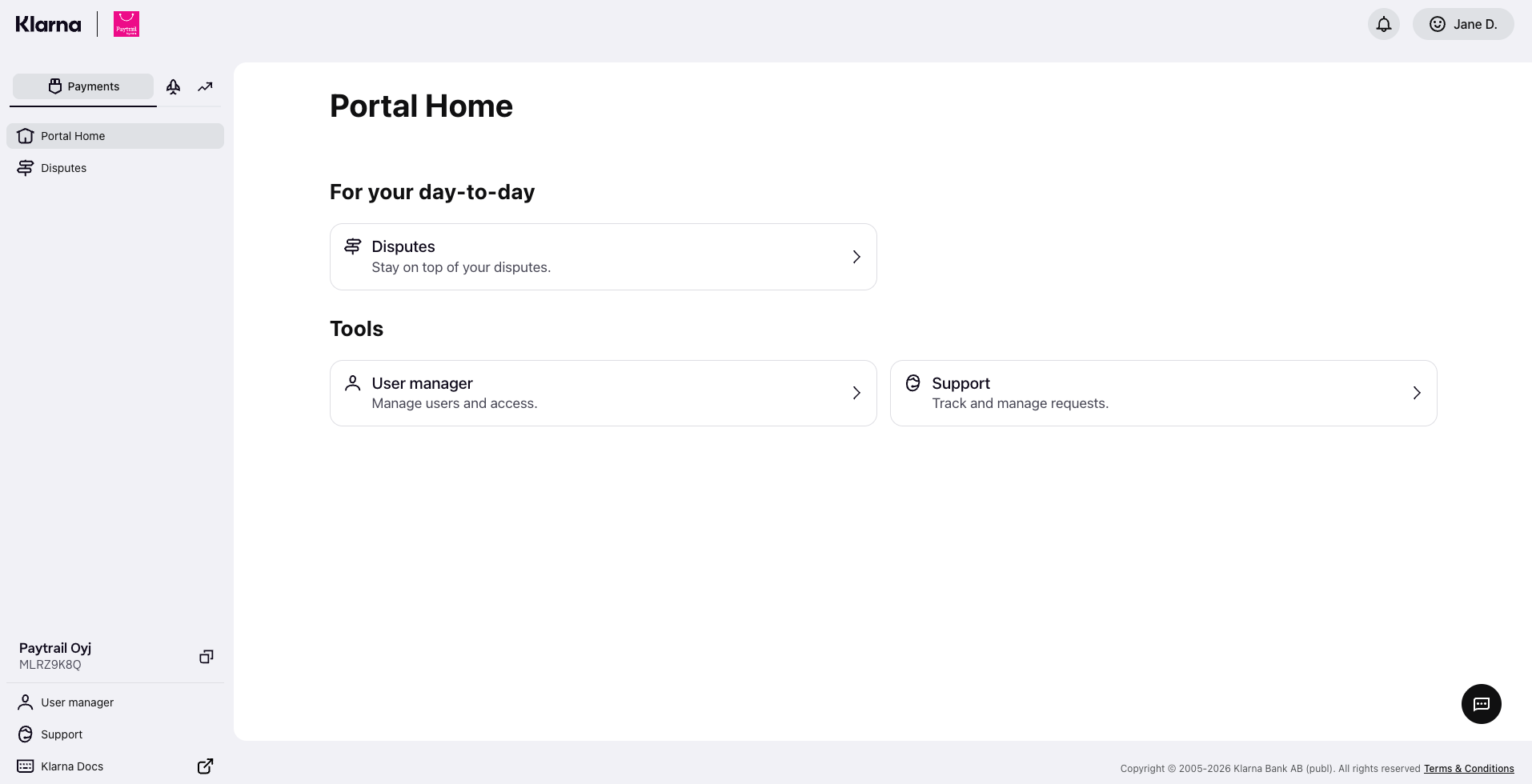
This is what the Klarna Partner Portal looks like when you sign in:
Payments
Under Payments, you can see Payments home and Disputes. When using Klarna through Paytrail, you will use the Disputes section.
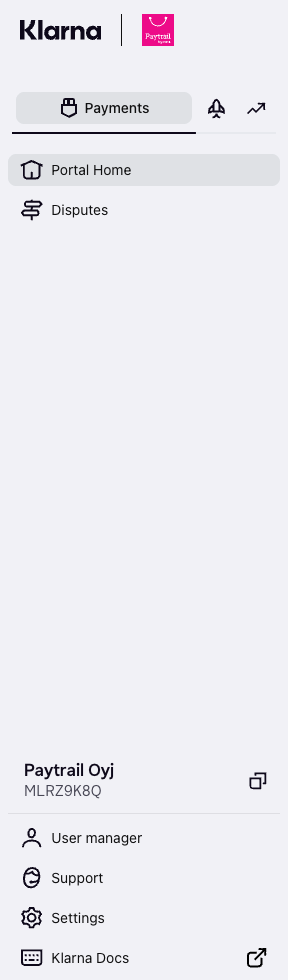
In the lower-left corner, along with Support and Klarna docs, you can also find User manager and Settings.
- User manager: All users can view existing users, and admin users can invite new users
- Settings: Visible only to admin users and not needed when managing Klarna through Paytrail
Disputes
Klarna payments follow Klarna’s own dispute and chargeback processes. Disputes are handled in the Klarna Partner Portal, where dispute notifications are sent. For more details, see how Klarna dispute management works.
Dispute notifications
Under Email and dispute settings, you can add or edit the email address that receives dispute notifications.
Each Klarna account can have one email address for dispute notifications.
Conversion features
Under Conversion features, you can see Set up conversion features, On-site messaging, Express checkout, Brand manager and Nexi Group dashboard.
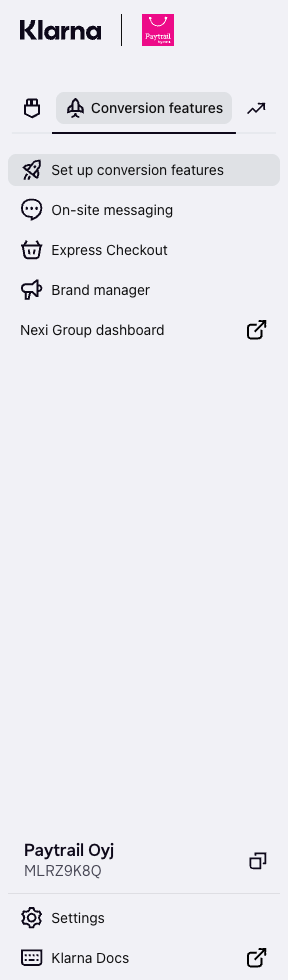
- For Set up conversion features, On-site messaging, and Express checkout: see how to set up conversion features in the Paytrail service.
- Brand manager: Visible to admin users and lets you add a brand name and logo that are shown to customers in the Klarna app.
- Nexi Group dashboard: Opens the Paytrail Merchant panel.
Growth marketing
The Growth marketing section includes Klarna marketing tools, such as Search & Compare.
These tools are managed by Klarna and are available depending on your Klarna setup. Contact Klarna for more information about using them.
Your user account
In the upper-right corner, you can access your user account settings.
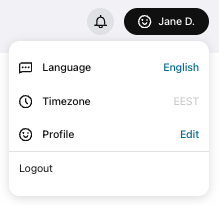
- Language: Change the language used in the portal
- Profile: Update your name, reset your password, or change your two-factor authentication method