Learn how to search for unsettled payments in the Merchant panel. You can filter payments by date range, settlement cycle, or status to view which ones have not yet been transferred to your merchant account. Export the results as a CSV, XLSX, or PDF file to track pending settlements and keep your financial records clear and accurate.
Step by step: How to search for unsettled payments
Unsettled payments
- Sign in to the Merchant panel.
- From the left-hand menu, select Payments.
- Enter the desired time range in the Date and time field, keeping your settlement cycle in mind.
- If your settlements are weekly, choose a start date such as Wednesday of the previous week to include all payments.
-
Click Show more to open the advanced filters and locate the Status field.
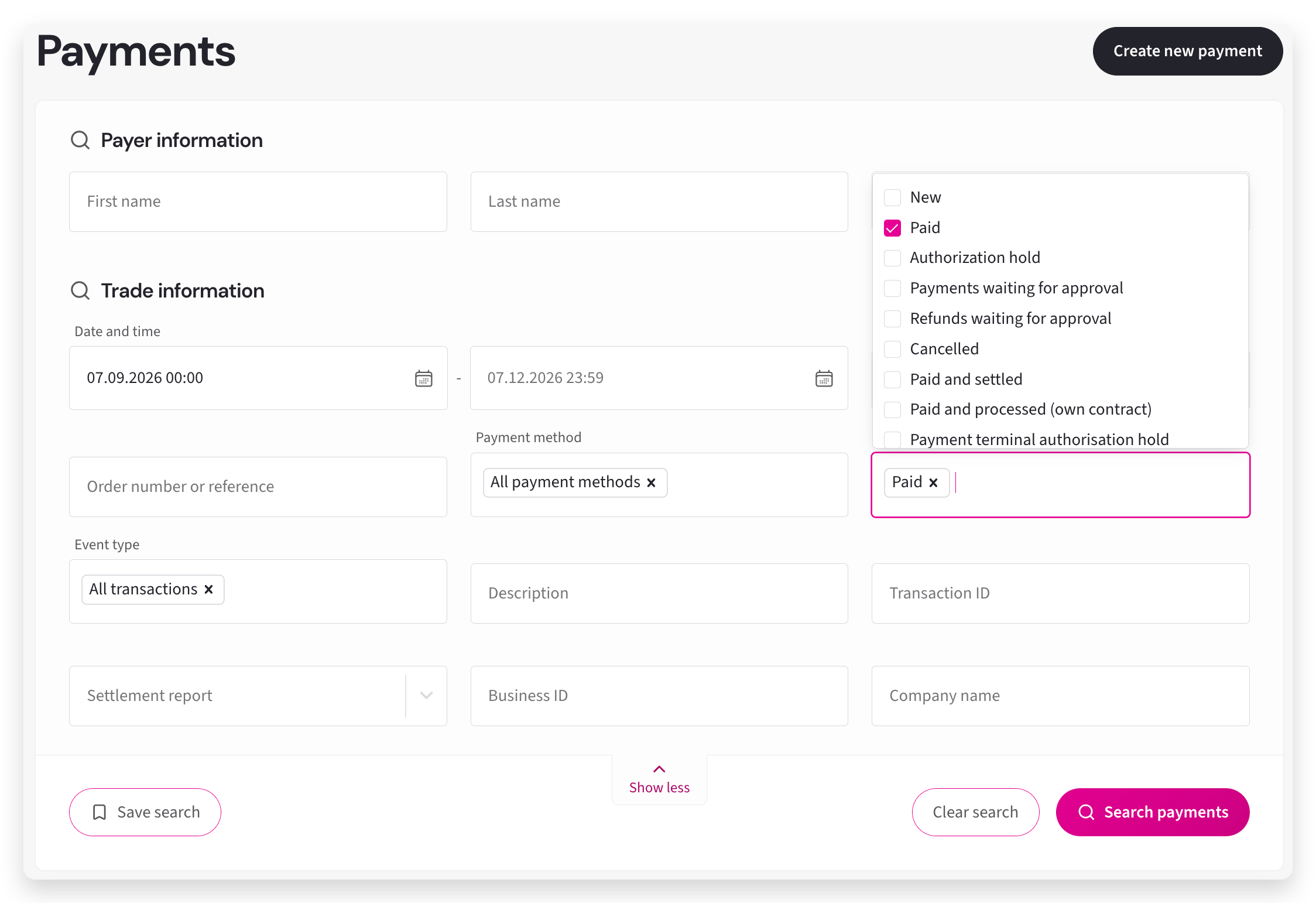
- In the Status drop-down menu, make sure only Paid is selected.
- Click Search payments.
- The payments matching your criteria will appear. You can download them as a CSV, XLSX, or PDF file. Click the desired Create option based on the file type, then select Download once it’s ready.
Unsettled payments on a specific date
- Sign in to the Merchant panel.
- From the left-hand menu, select Payments.
- Enter your preferred time range in the Date and time field.
- For example, to find payments unsettled at the end of December, set 31.12. as the end date and five days earlier as the start date.
- Click Search payments.
- The payments matching your criteria will appear. You can download them as a CSV, XLSX, or PDF file. Click the desired Create option based on the file type, then select Download once it’s ready.
Payments with settlement dates after your chosen end date were still unsettled on that date.